How to Create a Google Business Profile: Step-by-Step for Local Service Businesses

Updated: Jun 30

Setting up a Google Business Profile is one of the easiest ways to improve your visibility in local search. If you're wondering how to create a Google Business Profile, the good news is that it's easy to do yourself in about 30 minutes.
Research consistently shows that Google is the main place people go to find and evaluate local businesses, which is why your Google Business Profile plays such an important role in visibility from the start.
The challenge isn’t the setup itself, it’s making sure your information is complete, accurate, and actually useful to potential customers.
In this guide, I’ll walk you through how to create your profile step-by-step, plus what to focus on so it’s set up properly from day one.
What is a Google Business Profile?
A Google Business Profile (formerly Google My Business) is a free listing from Google that allows your business to appear in:
Google Search results
Google Maps
Local “map pack” results
It acts like a snapshot of your business that shows key information like your contact details, services, hours, location, and reviews.Thanks to Google Maps and the local map pack, your business can show up at the top of Google search results, above the regular organic listings.

Think of it as your business’s billboard on Google. It’s often the first thing people see before they ever visit your website.
Do You Need a Physical Location to Have a Profile?
One of the biggest misconceptions I see is that you need a storefront or office for clients to visit in order to have a Google Business Profile.
That’s not true.
If you’re a service-based business, like a contractor, cleaner, consultant, financial planner, or any business that works remotely or at client locations, you can still create a profile.
Google allows “service-area businesses,” which means you can hide your physical address and list your service areas instead.
So, if you’ve been holding off because you don’t have a storefront, you’re missing out on one of the easiest visibility tools available!
What You’ll Need Before You Start
Before you begin, all you need is a gmail account, a computer, and a few basic details:
Business name (use your real-world business name consistently everywhere online)
Phone number
Website URL
Business category (this is more important than most people realize)
Service areas (cities or regions you work in)
Business hours
A short description of each service you provide
Having this ready will make the setup process quick and straightforward.
How to Create Your Google Business Profile
You’ll be using Google’s free tool: Google Business Profile
Step 1: Sign in and get started
Go to Google Business Profile and sign in with your Google account.
Click “Add business > Add single business”

Step 2: Choose your business category
On the next screen, add your business name and select your business category (industry) from the list.
Your primary category tells Google what you are, not just what you do.Be specific. For example:
“Electrician” instead of “Contractor”
“Financial planner” instead of “Consultant”
You can add additional categories later, but your primary one matters most.
Step 3: Choose your business type
You’ll be asked if you have a physical location customers can visit.
If yes: enter your address or select your physical location on the map:

If no: select “service-area business” and add all the areas you serve (yes, including little in-between towns like Oyama and Peachland):
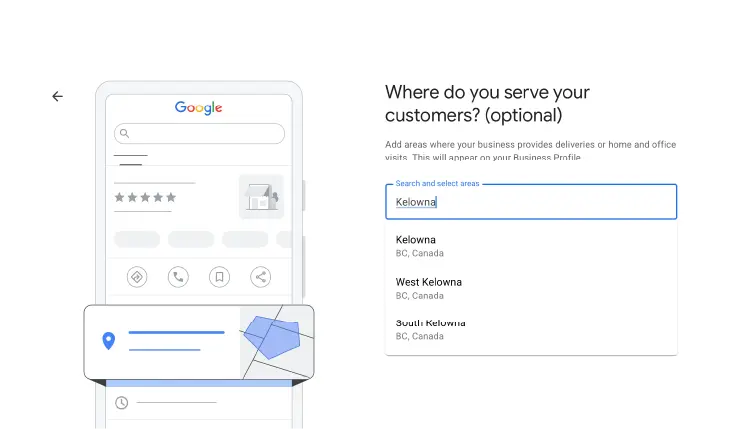
If you don’t serve customers at a physical location, list the cities or regions you work in.
Keep this realistic. Don’t list entire provinces or areas you don’t actually serve.
Step 4: Add your contact details
Add your business:
Phone number
Website
Make sure this matches what’s on your website exactly. Consistency helps build trust with Google and with customers.
Step 5: Add your mailing address (if applicable)
If you didn’t specify a storefront, you’ll need to add your mailing address on the next screen.
This information is hidden from the public, but it helps Google verify that you are a legitimate business.
After clicking “next,” you may be asked to submit documentation to verify your address, such as a utility bill. Usually this is just a photo you can upload directly.
Alternatively, you can click “Verify later” to skip this step for now and come back to it later.
Step 6: Add your services
List your core services. You can select from the auto-populated options or enter your own custom services.
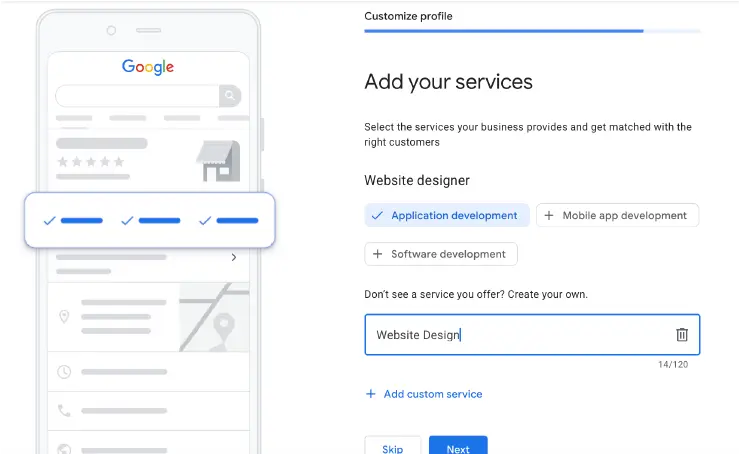
Adding services helps your profile appear in relevant searches.
Keep the service names direct and straightforward. This is not the place for buzzwordy or markety language. Think of your services as words or phrases people are actually searching for. Don’t add the city to your services either.
For example, if you offer financial planning services, add “Financial planning,” not “best financial planner in Kelowna.”
Note: using subjective language like “best financial planner in Kelowna” can get your profile flagged and hidden from the public. If your profile does get flagged or taken down, it can take a lot of work to get it reinstated—sometimes even months or longer.
Step 6: Add your business hours
Add your regular working hours.
If your hours vary, keep them accurate and update them when needed. Outdated information is one of the fastest ways to lose trust with potential customers.

Once your profile is public, you’ll also get automated reminders to update your opening hours on holidays.
And don’t worry, if your hours change, you can always come back and adjust profile details later.
Step 8: Add your business description
Write a straightforward description of your business.
Again, this is not the place for buzzwordy, markety language or exaggerated claims (in fact, unrealistic language can get your profile flagged and hidden from the public). Be clear, direct, and to the point. Include words or phrases your customers are searching for.

If you have won service awards, feel free to include that in neutral language that doesn’t sound salesy, like:“Awarded the 2025 Customer Service Excellence Award for outstanding client care.”
Step 9: Add a storefront or office photo (if you have one)
If you have an office or storefront, add exterior photos to help customers recognize your business when they’re trying to find you on Google Maps. Keep this photo updated if you change signage or make any changes to your storefront.

If you don’t have an office that’s open to the public, you can skip this step.
Step 10: Add photos of your business
Add photos of your store or office interior, as well as photos of you and your staff “in action” performing regular tasks on the job, whether that’s in a workshop, loading a cube van, operating a checkout, or typing at a computer.
These photos help build trust with your customers by showing the real people behind the business, and help them feel more comfortable reaching out or visiting if you do have a physical location.
Step 11: Verify your business
Google will ask you to verify your business.
This is typically done by:
Postcard mailed to your address
Phone or email verification (in some cases)
Or Photo or video verification

Once verified, your profile becomes visible to the public and can appear in search results.
Complete Your Profile (Don’t Skip This Part)
Once your profile is created, you’ll want to fill in the missing details.
At minimum, make sure you have added your business description, services, and photos.
Once your profile is verified, you can also add:
Direct booking links (i.e. Calendly, Google Calendar, etc.)
Social links
Additional business categories (if applicable)
Service options (online appointments, additional languages, etc.)
And most importantly, you can start getting those reviews!
How to Share Your Google Business Profile Link for Reviews
Open your Google Business Profile Manager, select the business you want, and it will open your full profile.
On the left, you’ll see a set of icons for managing and promoting your profile. To get your review link, click “Ask for reviews”:

This will open a popup where you can either copy the review link or download the QR code.
Save the link somewhere easy to access so you can quickly share it with clients after a job is complete.
If you have a storefront, you can also print the QR code and display it somewhere customers can easily scan it and leave a review.
Common Mistakes to Avoid
If a Google Business Profile gets no action, it’s usually not because it was set up incorrectly. Most of the time, it’s because it’s incomplete, inconsistent, or simply ignored after setup.
Here are the most common issues I see:
1. Incomplete profiles
Missing services, descriptions, or photos reduces both trust and visibility. A half-finished profile signals to both Google and customers that the business may not be active or these missing details may raise questions of lackluster customer service.
2. Outdated information
Old phone numbers, incorrect hours, or broken website links can cost you leads and damage trust quickly. Make it ridiculously easy for people to get in touch with you. It matters more than you think.
3. No reviews
Reviews are one of the strongest trust signals for local businesses. A profile with no reviews often gets overlooked, even if the business is legitimate and highly skilled.
4. Trying to “game” or over-optimize the profile
This is where many issues happen. Google Business Profiles exist within Google’s ecosystem: you don’t own the platform, you’re essentially operating in borrowed space.
That means it’s important to follow their guidelines closely. Things like keyword-stuffed business names, exaggerated claims, or unnatural service descriptions can trigger flags or suspensions.
If a profile is flagged or suspended, getting it reinstated can take significant time. In many cases, Google doesn’t provide clear explanations, and support is limited. You’re often left working through vague feedback and resubmissions until the issue is resolved, which can take weeks, months, or even years.
5. Treating it like a one-time setup
A Google Business Profile isn’t something you set and forget. It should be maintained, updated, and actively supported over time through new photos, posts, and regularly maintained holiday hours (don’t worry – you’ll get an email prompting you to update hours for holidays and provincial stats).
A Note on Reviews
Most business owners feel awkward asking for reviews, and I get it. It can feel awkward at first!
But the thing to remember is that customers are usually happy to leave one if they’ve had a good experience.
The key is to make it part of your process.
If you're not sure how to ask for reviews without feeling awkward or pushy, check out my guide on How to Get Amazing Reviews for Your Website (With a Copy-and-Paste Template), where I share the exact review request template I recommend to clients.
A simple system works best:
Send a follow-up email after a job is complete
Include your review link
Ask while the experience is still fresh
If it’s not automated or built into your workflow, it will likely get forgotten.
(And a quick note: never offer incentives for reviews. This goes against Google’s guidelines and can seriously harm your visibility.)
Why Your Google Business Profile Matters for Your Visibility
Your Google Business Profile is often the first thing people see when they search for your services in your area.
It helps you show up in local search results and on Google Maps, which is where many customers make quick decisions.
A complete, accurate profile increases your chances of being found by people who are actively looking for services that you offer.
Your Website vs. Your Google Business Profile
Your Google Business Profile and your website work together.
Your profile helps people discover you and quickly confirm you’re a real, trustworthy business.
Your website gives them the deeper information they need to decide if you’re the right fit.
If someone clicks through from your profile, they’re usually looking for more detail on your services, your process, and how you help solve their problem.
Without a website, you lose that opportunity to provide the answers people are looking for.
Without a Google Business Profile, you miss visibility in local search altogether.
You really need both.
Next Step
Once your Google Business Profile is set up, the next step is optimization.
That’s where you can improve how often you show up in search, how many calls you get, and how strong your profile looks compared to competitors.
I’ll cover that in a separate guide: How to Optimize Your Google Business Profile for Better Local Visibility

Beth Issler, Designer, & Website Strategist
With 10 years of experience working with small businesses, Beth Issler helps service professionals turn their expertise into a clear, credible online presence. As a web designer, brand designer, and website strategist, she creates brands and websites that help businesses attract better leads, build trust, and grow with confidence. Connect with Beth on LinkedIn or browse more articles on the blog.


Comments